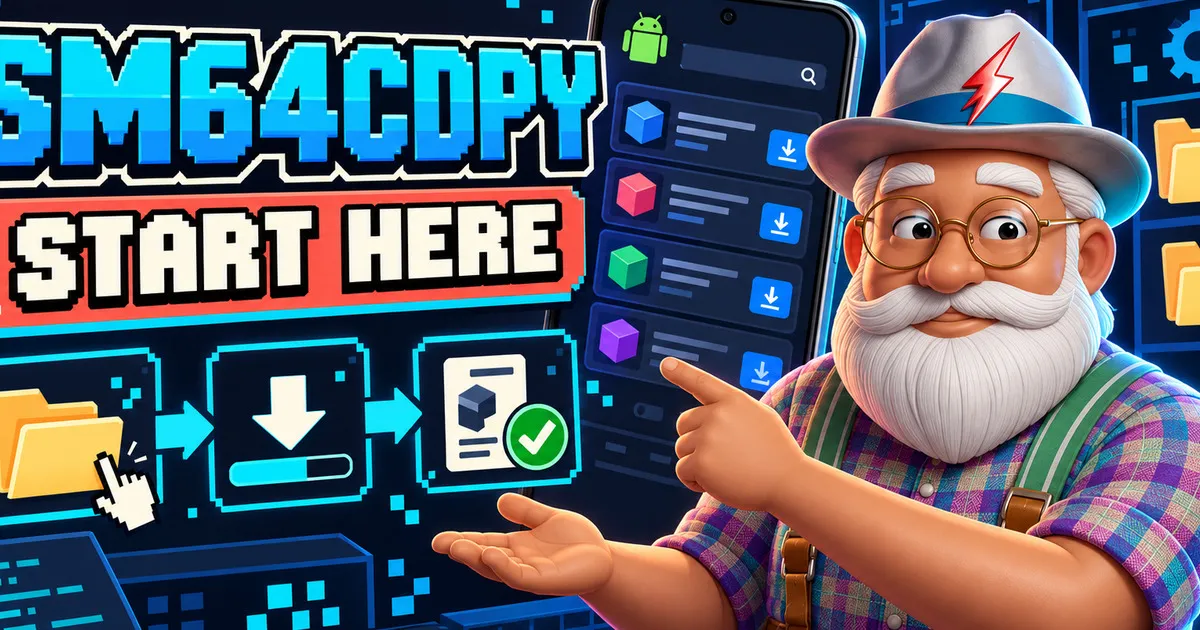
SM64CDPY is an Android mod manager for discovering, downloading and installing community-created Lua game modes, DynOS packs and touch controls for SM64CoopDX.
This introductory guide will help you configure the app, install your first item and understand what happens during the process.
Before you begin
Prerequisites
- Android devicePlatform
SM64CDPY supports Android 7.0 and newer.
- SM64CoopDX installationSoftware
You need your own working installation to use downloaded community content. SM64CDPY does not distribute the game or required game data.
- Folder accessPermission
Android will ask you to grant access to the folders where SM64CoopDX loads mods and DynOS packs.
| Platform | Status | Minimum version | Notes |
|---|---|---|---|
| Android | Supported | 7.0 | Primary platform supported by SM64CDPY |
| Linux | Not available | Not available in the current public release | |
| Windows | Not available | Not available in the current public release |
Last verified: September 2026
Configure SM64CDPY
Open Settings
Open the navigation drawer and select Settings.
This screen controls the installation folders and automatic installation behavior.
Verification: The folder configuration options are visible.
Select the mods folder
Select the folder used by SM64CoopDX for Lua game modes.
This destination is used for regular catalog content, including compatible VIP, Render96 and other Lua-based entries.
Verification: The selected mods folder is displayed in Settings.
Select the DynOS folder
Select the destination used for DynOS packs.
Touch controls also use the DynOS destination, so they do not require a separate installation folder.
Verification: The selected DynOS destination is displayed in Settings.
Choose your installation behavior
Enable Automatically install after downloading if you want SM64CDPY to download, extract and place compatible content in the correct folder.
If the option is disabled, the app downloads the file without claiming that it was installed.
Verification: The automatic installation option reflects your preference.
Install your first community game mode
Open the catalog
Return to the main catalog and open an item that interests you.
Its detail page shows the creator, available version, statistics and description.
Verification: The catalog displays the available community content.
Choose a version
The latest version is the recommended choice for most users. Previous versions may remain available when compatibility or testing requires them.
Verification: A download or installation operation begins.
Follow the complete operation
An automatic installation can pass through several states:
- Preparing
- Downloading
- Installing or extracting
- Installation completed
Verification: The app reports Installation complete.
Check your library
Open Library from the navigation drawer after installing content.
The library organizes your local content into these sections:
- Installed shows content recorded and found on the device.
- Updates shows installed content with a newer catalog version.
- Detected shows compatible folders found on the device that are not yet linked to a catalog entry.
- Recent shows your latest installation activity.
Use the refresh action after removing or changing files with an external file manager.
Cancelling an operation
You can cancel an active download or installation from its corresponding control.
SM64CDPY waits for confirmation from the Android background worker before treating the operation as cancelled. Cleanup of partially extracted files can take a few seconds.
Do not manually delete temporary files while cancellation is still being processed.
Expected result
Expected result
After completing this guide, you should be able to confirm:
- The mods and DynOS destinations are configured
- Your installation preference is saved
- The operation reaches Installation complete
- The installed item appears in Library
- The content exists in the correct SM64CoopDX folder
If something goes wrong
Try these checks before downloading again:
- Confirm that the correct destination folder is selected.
- Verify that Android still grants access to that folder.
- Refresh the library.
- Check your internet connection.
- Read the user-facing error before copying its technical details.
- If a link returns 404, the external file may no longer be available.